

TL;DR;
Claude Code is Anthropic’s terminal based (CLI) AI agent that shifts the paradigm from “AI as a consultant” to “AI as a junior engineer”. Unlike a web-based chatbot, it has “hands”; it can read your files, execute terminal commands, run tests, and commit to Git.
The “Brain” Shift: Stop describing problems; start directing work. Claude Code lives in your local file system, not just a browser tab.
The Secret Sauce (
CLAUDE.md): Create a markdown file at your project root to act as Claude’s “onboarding manual” for persistent context and project rules.Essential Commands: Use
/modelto switch to Sonnet 4.6 (saves tokens),/compactto refresh AI memory, and/planto vet complex tasks before execution.Context is Currency: Manage your “attention budget” by using
/clearbetween unrelated tasks to prevent “AI fog” and high costs.Requirement: Requires a Claude Pro subscription ($17/month) and installation via terminal.
The Golden Rule: Treat Claude Code like a colleague who needs clear boundaries and permissions, not just a text box for questions.
Merhaba 👋🏻
I am a Software Engineer with 10+ years of experience. My goal is to close the gap between the technical and the non-technical, making AI accessible to everyone, regardless of their background.
If you just installed Claude Code and you're not sure how to actually get it working; this is the guide I wish I had.
If you’ve been using AI in a browser, you’ve been treating it like a consultant. You describe a problem, it gives you a suggestion, and then you do the manual labor of copy-pasting, debugging, and saving files. You are the worker; the AI is the advisor.
You type. It answers. You copy the answer somewhere useful. Then you go do the work yourself.
Claude Code is not that.
Claude Code is a junior engineer who actually sits at your computer; it can open your files, edit them and run commands. You don't describe the problem to a consultant anymore; you hand the keys to a colleague and tell them what to do.
That shift in mindset is everything.
How Claude Code Works: The 3-Phase Framework
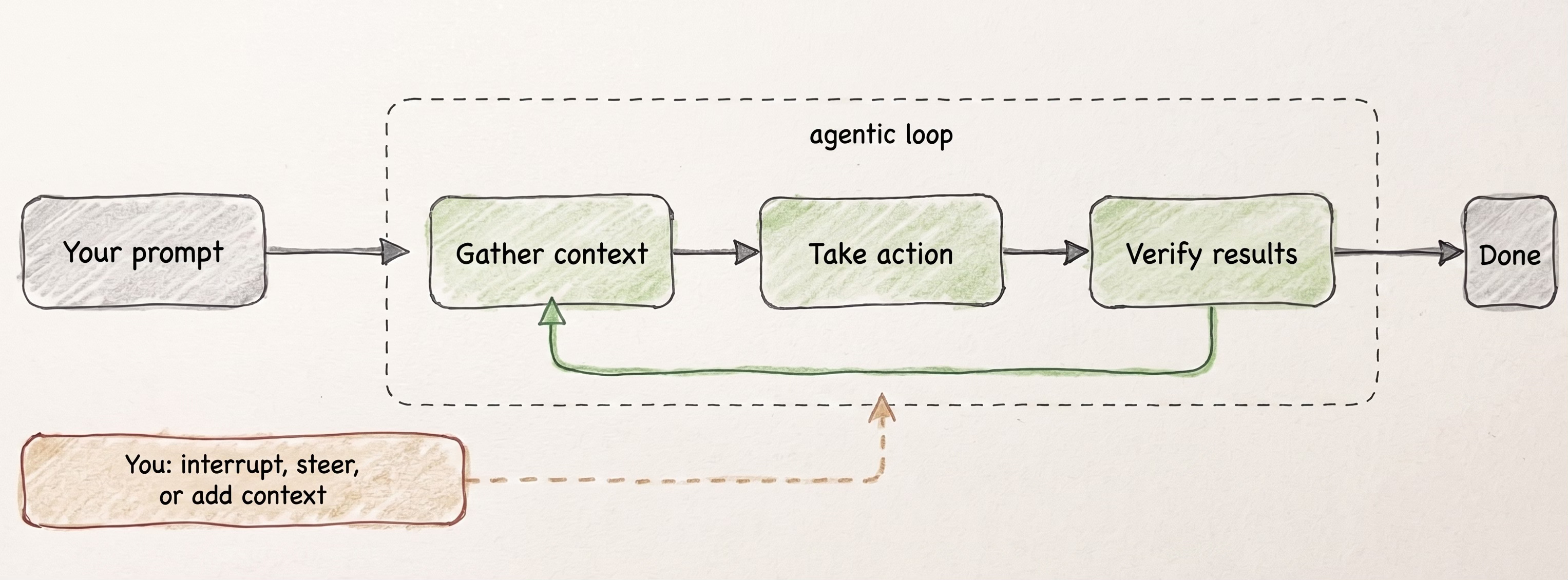
Claude executes tasks through an integrated three-phase framework: gather context, take action, and verify results. As these phases blend together, Claude actively leverages its toolset at every stage to analyze codebase files, apply changes, and validate outcomes through testing.
Before we go into more detail, I want to clarify something: You don't need to write code to use Claude Code. You need to direct work. If you have a folder of markdown notes, a half-built side project, a Substack draft workflow, research PDFs, or a spreadsheet mess, Claude Code can work on any of that. The "code" in the name is misleading. It's really an agent that lives in your file system. That said, you can always use Claude Cowork instead, which is basically an interface with a high-level coding power. You can also check out my AI News Digest with n8n article to explore a low code tool.
How to Install Claude Code (Mac & Windows)
To be able to use Claude Code, you need at least Claude Pro Subscription which is 17$ per month. If you already have a subscription, you can download claude code by following these instructions on Quickstart page from Anthropic.
💡 Prefer to download claude code with native installer from Quickstart page because this will help you to get auto updates in the background.
After you install it, run this command on terminal (or powershell) to verify installation:
claude --versionNow that you got the correct version on your terminal, you can start claude code by typing claude.
6 Claude Code Concepts Every Beginner Needs to Know
Once Claude Code is running, there's a small set of ideas that make the difference between "this is confusing" and "oh, this actually makes sense." Here they are, in rough order of importance.
1. CLAUDE.md: Claude Code's Project Memory File
This is a plain markdown file you put at the root of your project folder. Claude reads it automatically at the start of every session. Think of it as the onboarding document for a new hire: conventions, file structure, “always do X”, “never touch Y”, what tools the project uses.
Writing a good CLAUDE.md is the single highest-leverage thing a beginner can do. It’s the difference between “it keeps forgetting my setup” and “it just knows”.
A starting point (steal this):
Project: [Name of your project or workspace]

What this is: [One sentence describing what lives in this folder]

File structure:

/drafts — [what goes here]
/published — [what goes here]
/templates — [what goes here]
Rules:

* Always [your most important convention, e.g., "use markdown for all new files"]
* Never [your biggest guardrail, e.g., "delete anything in /published without asking"]
* When creating new files, [naming convention or format preference]
* Tone/Style notes: [If Claude will be writing for you, put voice guidelines here]

Tools this project uses: [List anything relevant: Git, a specific static site generator, a particular folder structure]
I skipped writing a CLAUDE.md for my first three projects because it felt like extra work. Every single one of those projects turned into sessions where I repeated the same instructions over and over. Write it first, not last.
💡 If you don’t know how to fill this file yet, it’s okay to not have it in the beginning. You might end up repeating yourself to claude for a while, but when you discovered what claude keeps forgetting, you can always tell claude to create a
CLAUDE.mdfile and add these constraints.
2. Claude Code Slash Commands: Your Essential Control Panel
Inside a Claude Code session, typing / pulls up a menu of commands. You don’t need to memorize all of them. The ones worth knowing on day one:
/help— shows you what’s available/clear— wipes the conversation and starts fresh (your files stay untouched)/compact— summarizes the conversation to free up context space/model— lets you switch between models mid-session/effort— lets you switch between intelligence levels/context— shows you how much of the “attention budget” you’ve used/plan— puts Claude into planning mode so it thinks before it acts/insights— generates a report that analyzes your claude code session.
💡 When you run
/insightscommand,Claude Code will give you tips to get most out of it by generating a nice report for you.
Among all these, one of the most important command is /model. When you first downloaded Claude Code, you probably will get the highest model: Opus 4.7.

Well, nothing wrong with Opus 4.7 model. Only problem is, your tokens will burn so fast before you finish the work. That’s why I’d suggest you to switch to Sonnet 4.6 by typing /model command.

💡 You can also set effort level by typing
/effortto the terminal. Set it to medium if you are just going to do a code generation. You can also set it to Low effort for a chat or non-coding use cases.
3. Claude Code Context Window: Managing Your Token Budget
This is where most people hit their first real wall, and it’s the same concept I’ve written about before in No-BS Vibe Coding series. Claude has a limit on how much it can “hold in its head” at once. Every file it reads, every message you send, every tool result; it all goes into that budget.

When the budget fills up, two bad things happen: responses get worse, and older parts of the conversation start getting quietly dropped. You’ve seen this in ChatGPT or in Gemini too; that moment forty minutes into a conversation where the AI seems to forget everything you told it earlier.
Same thing here. But in Claude Code, the stakes are higher because the AI is actually editing your files, not just talking.
If you want to see context in action:
Open a Claude Code session in any project folder.
Run
/contextto see how much budget you have.
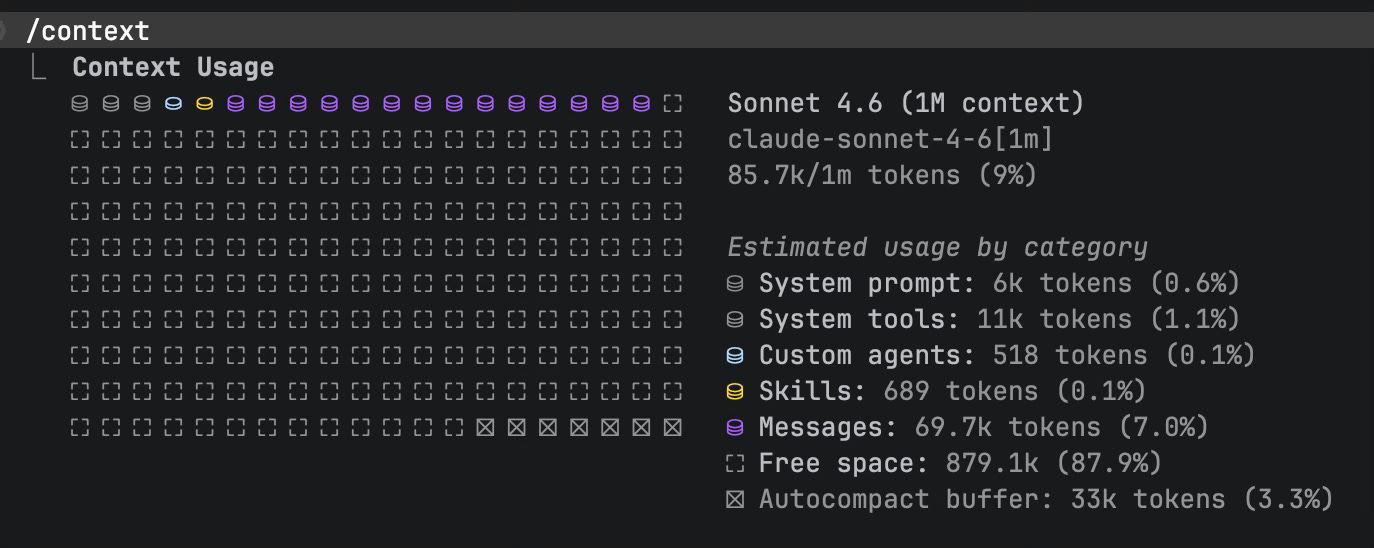
Here is how context usage looks like in one of my projects.
Work on one focused task for 15 to 20 minutes.
Run
/contextagain to see how it’s changed.Run
/compactand notice how the session feels sharper afterward.
This builds your intuition for context management faster than any explanation I can write.
3.1. When to Use /compact vs. /clear in Claude Code
It is important to know when to use /compact and /clear commands. This way, you don’t accidentally lose the entire conversation in the middle of the current task, like I did before.
/clear nukes the conversation entirely. Use it when switching to something unrelated and the history has zero value for the next task.
/compact summarizes the conversation and restarts from the summary. Use it when you’re still in the same task but the session has gotten long and noisy.
💡
/clearis “burn the whiteboard”./compactis “take notes from the whiteboard so you can erase it”.
Compact proactively; don't wait to hit the wall. After a feature is working, after a bug is fixed, after a module is complete; that's the right moment to compact, not after Claude starts forgetting what you told it three hours ago.
4. Claude Code Permissions: How to Stay in Control
Claude Code asks you before it does anything risky: editing a file, running a shell command, deleting something. You’ll see a prompt like “Claude wants to run rm -rf logs/. Allow?”
Read these. Actually read them.
Don’t build the habit of mashing “Yes” to everything. That’s how people lose work. I’ve done it; twenty minutes into a productive session, clicking “Allow” on autopilot, and then watching Claude cheerfully overwrite a file I hadn’t backed up yet. The tool warned me. I just wasn’t paying attention.
You can configure Claude Code to auto-approve safe operations later, once you’ve built trust and you know what “safe” looks like in your project. But on day one, read every permission prompt.
There’s also a Plan mode. Type /plan and Claude will think through a task and propose a plan before touching anything. Use this for anything bigger than a one-line fix. It’s like asking your junior engineer to explain what they’re going to do before they start doing it.
5. Claude Code Skills: Reusable Task Bundles
A skill is a folder with a SKILL.md file that teaches Claude how to do a specific kind of task. “How we write SEO metadata for this newsletter”. “How we format a PR description”. “How to process an invoice PDF”. Claude auto-invokes the right skill when the situation matches.
Think of skills like recipe cards in a kitchen. You write them once, and every time Claude encounters a matching situation, it already knows the steps.

You don't need skills on day one. But by day three, when you notice yourself giving the same instructions for the third time, that's when you create one.
6. Claude Code MCP: Connect to Notion, Gmail & GitHub
MCP stands for Model Context Protocol, and it’s how Claude Code plugs into other services: Gmail, Google Drive, Notion, Slack, GitHub, etc. You add an MCP server once, and Claude can now use that service on your behalf.
This is the part that makes Claude Code feel less like a coding tool and more like an assistant that actually has hands.
💡 Without MCP, Claude can only work with files on your computer. With MCP, it can pull data from your Google Drive, check your GitHub issues, or read from a Notion database.
I’d file this under “week two” for most people. Get comfortable with the basics first; the file system, the context management, the CLAUDE.md. Then start connecting external services once you’ve got the core mental model solid.
Claude Code Tips to Save Tokens and Avoid Mistakes
Each of these cost me at least one frustrating session before I figured it out. Here they are so you can skip the frustration.
Write the
CLAUDE.mdfirst, not last. I said this already. I’m saying it again because I still catch myself skipping it when I’m excited to start a new project. Every time I skip it, I regret it within twenty minutes.Start every unrelated task with
/clear. Context bleed between tasks is real. If you just finished reorganizing your file structure and now you want to draft a blog post, clear the session. Fresh context, fresh results.Use Plan mode for anything scary. If the task involves deleting, moving, or restructuring, type
/planfirst. Let Claude show you what it’s going to do. Then decide.Pick your model deliberately. You can switch models mid-session with
/model. Some tasks need the most capable model; some tasks are fine with a faster, cheaper one. Don’t burn your best model on file renaming.Don’t run it in your home directory. If you launch
claudefrom~(your home folder), Claude’s “world” is your entire home directory. That’s messy and slow. Always switch into a specific project folder first.Version-control your config. Your
CLAUDE.md, your skills, your slash commands; these are all just files. Put them in Git. If something breaks, you can roll back. We call this “version control,” but it is just a Temporal Insurance. (If you missed that concept, it showed up in one of my earlier articles.)

Common Claude Code Mistakes (And Exactly How to Fix Them)
These are the problems I see people hit most often. Knowing them in advance saves you real hours.
“Why won’t it log in?”
You’re probably on a free Claude.ai account. Claude Code requires Pro, Max, Team, Enterprise, or API access. Check your account settings at claude.ai before troubleshooting anything else.
“It feels dumber than it was an hour ago.”
Context is full. Run
/contextto check, then/compactor/clear. This is not a bug; it’s the attention budget running out. It happens in every long session. The fix is always the same: clear or compact.“It keeps forgetting what I told it earlier.”
Two possible causes. Either the context budget pushed your earlier messages out, or you didn’t put the important stuff in your
CLAUDE.md. Anything Claude needs to remember across sessions belongs inCLAUDE.md. Anything it needs to remember within a long session might need a/compactto survive.“It did something I didn’t want.”
This is almost always a permissions problem; either you auto-approved something without reading it, or you gave instructions that were too vague. Be specific. “Clean up this folder” is dangerous. “Move all
.logfiles from/outputto/archiveand list what you moved” is safe.
Share this post with someone who is learning Claude Code
The Mental Model That Makes Claude Code Click
Here’s what I keep coming back to with Claude Code: the tool is not the hard part. The mental model is the hard part.
If you walk in thinking “this is a fancier chatbot”, you’ll be frustrated within the hour. If you walk in thinking “this is a junior colleague who needs clear direction, an onboarding doc, and someone checking their work”, it clicks almost immediately.
I’m still calibrating this myself. I still catch myself typing long, descriptive prompts when I should be giving short, direct instructions. The difference is that now I know why it’s happening, and I can fix it in seconds instead of spending thirty minutes blaming the tool.
The junior engineer metaphor isn’t perfect. No metaphor is. But it’s the closest thing I’ve found to a mental model that actually predicts how Claude Code will behave before you hit Enter.
That’s worth a lot on day one.
If you want to try out Claude Code today, try building your own AI agent that I’ve explained in one of my articles. Just download Claude Code, use an IDE if you like (i.e. VS Code), and give instructions to Claude.

Here is the Part 2 of the Claude Code series: Claude Code: Subagents.
Which part clicked for you? Or which part still feels fuzzy? Drop it below; your question might be the next article!
PS: If you're new here and wondering why a software engineer is writing about all this - here's why I started Becoming with AI."
Very useful! As a professional token burner the /context is a lifesaver. My wallet and I thank you. 🙏
Nice